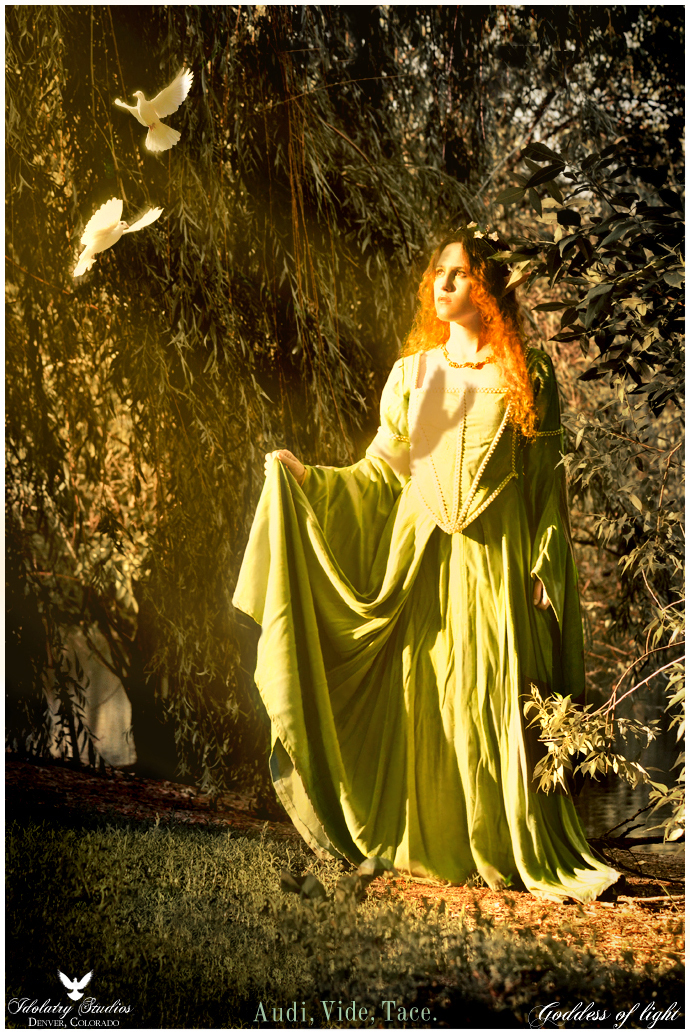
Wacom and deviantART are proud to present the winners for Wacom's "Bring Your Vision to Life: Dreams" contest.
Details
September 18, 2009
984 KB 984 KB 690×1034 StatisticsCamera Data
NIKON CORPORATION
NIKON D300 1/250 second F/5.6 80 mm 400 Jun 24, 2009, 6:52:01 PM Share
Link
Embed
Thumb
|
Comments
--
"Our commander is a good man. The Master of Kitchens but rubs him the wrong way." ~Chrono Trigger
--
- Pink Bunnie Ink
Having her face focused through bright natural light is a dramatic statement. But you need to be careful of excessive pixel detail loss of her face. One seldom wants to washout the face of the model.
If the blowout happened at the camera level at the time of the shot, consider shooting an image like this a bit underexposed, then correct it in post-processing. Detail cannot be recovered from blowout, but there is much you can do to recover from underexposure, which is mostly recovering color saturation and increasing light levels.
Another possibility is to shoot it with a Neutral Density Lens Filter ( a 0.6 or lower).
Did you post-process this shot for Dynamic Range and/or Color Balance? If you did, and that is when the highlight problems happened, there is a way to protect your highlights from blowing-out and loosing your highlight details:
1. Open the image in Photoshop.
2. Go to Select > Color Range... and/or use the Magic Wand tool to select the areas that are Blown-out already, or likely will get Blown-out when you adjust the dynamic range, as well as Burned-out areas, or area likely to be Burned-out.
3. Feather the selection ( Select > Modify > Feather ) by about 5 pixels to start with. NOTE: I divide the image's resolution by 15 to get the starting feather. So a 300 dpi image would be a feather of 20 pixels, and a 72 dpi image would be 5 pixels.
4. Invert the Selection ( Select > Inverse ).
5. Hide the Selection ( View > Extras ). Command h (Mac) or Control h (PC) toggles View/Hide.
6. Adjust Dynamic Range and Color Balance using Levels or Curves, BUT watch the selection zones carefully for banding. If banding shows up, adjust Levels or Curves only to the point just before banding appears. Then shrink the selection areas a little ( Select > Modify > Expand... ) ( Expand because the selection areas are inverted ), Hide the selection again ( View > Extras ), then adjust Levels or Curves some more, watching for banding. If banding appears again, then repeat the cycle as necessary.
7. Select > Deselect. This way, you should now have only a small amount of Burnout and Blowout, while achieving the desired Dynamic Range and Color Balance.
This way, you get your adjustments, but preserve highlight detail.
--
I worship at the altar of creativity.
--
i don't care 'bout what you've got ..i just want it all!
--
"I am a poor man and of little worth, who is laboring in that art that God has given me in order to extend my life as long as possible." -Michelangelo.
Previous PageNext Page